
Use your own yarn colors
Add a color from its Hex value, name it after your own yarn, and write down the yarn’s details, one color at a time.
StitchWing has a yarn library, but you can also use any color you like, name it after your own yarn, and write down the yarn's details. Here's how to add a custom color, one color at a time.
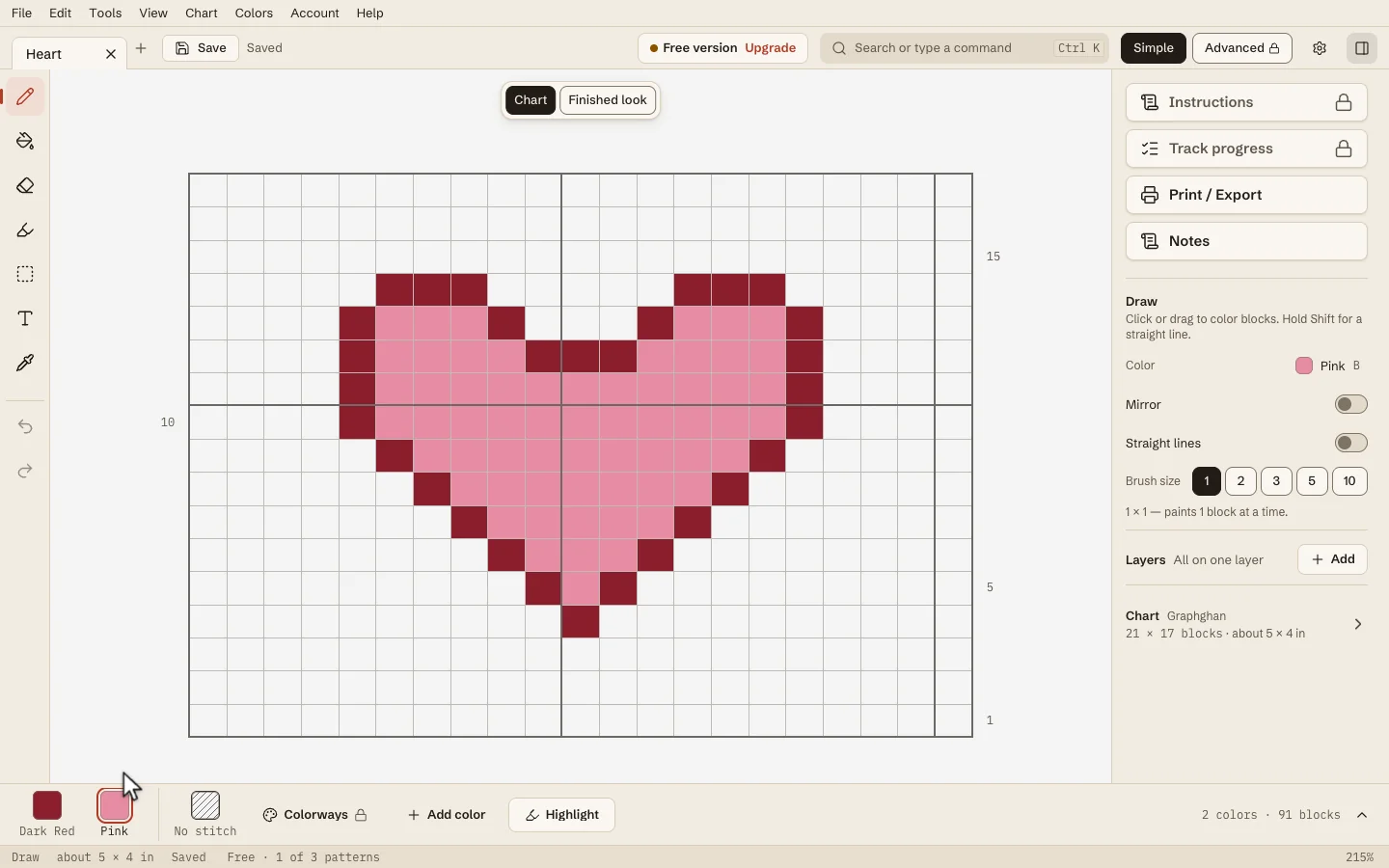
Step 1. Open your chart and press Add color
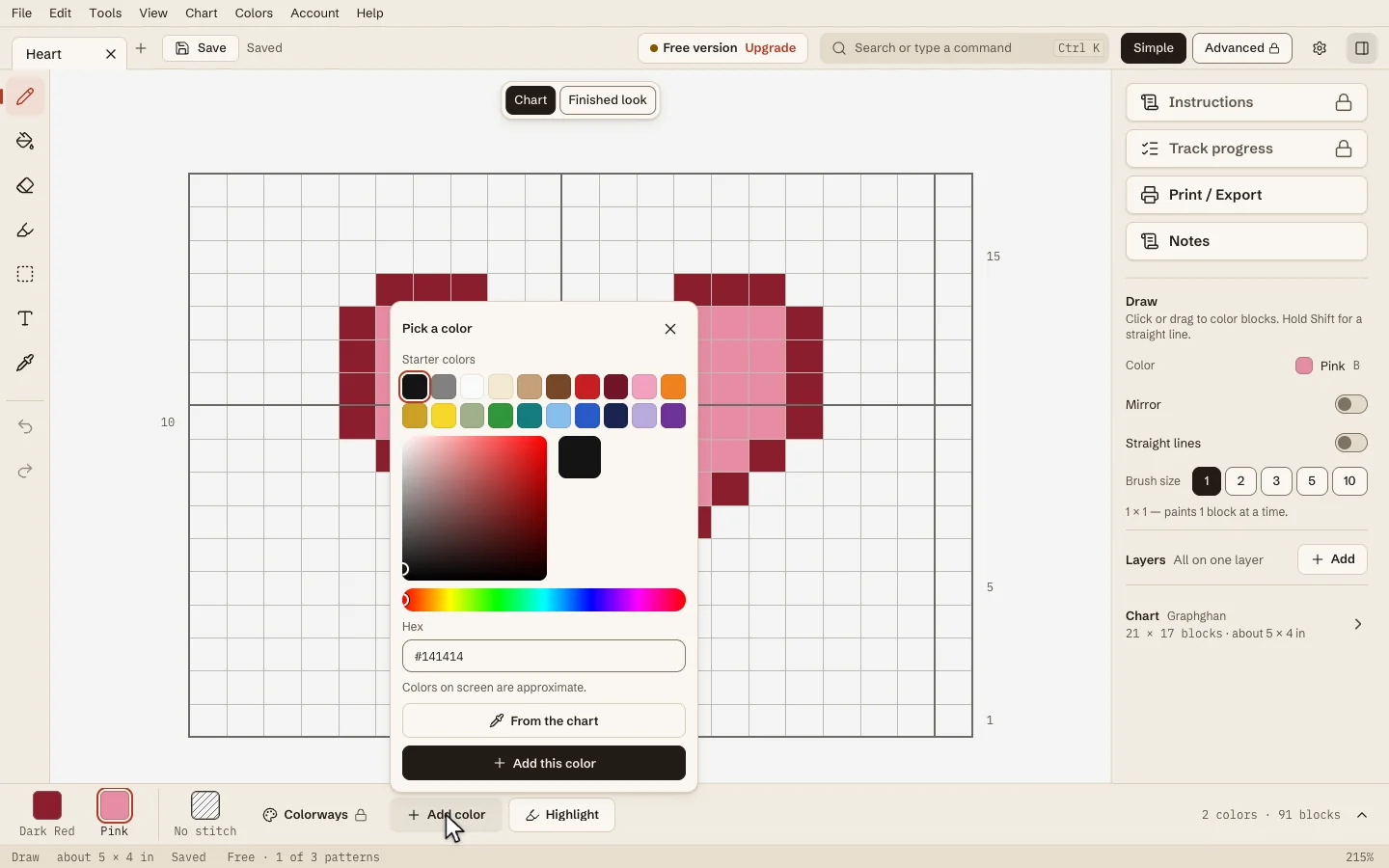
Open the chart. Along the bottom, in the strip of colors, press Add color.
- You see: a small window titled Pick a color with starter colors, a color square, a rainbow bar and color-value fields.
Step 2. Enter your color
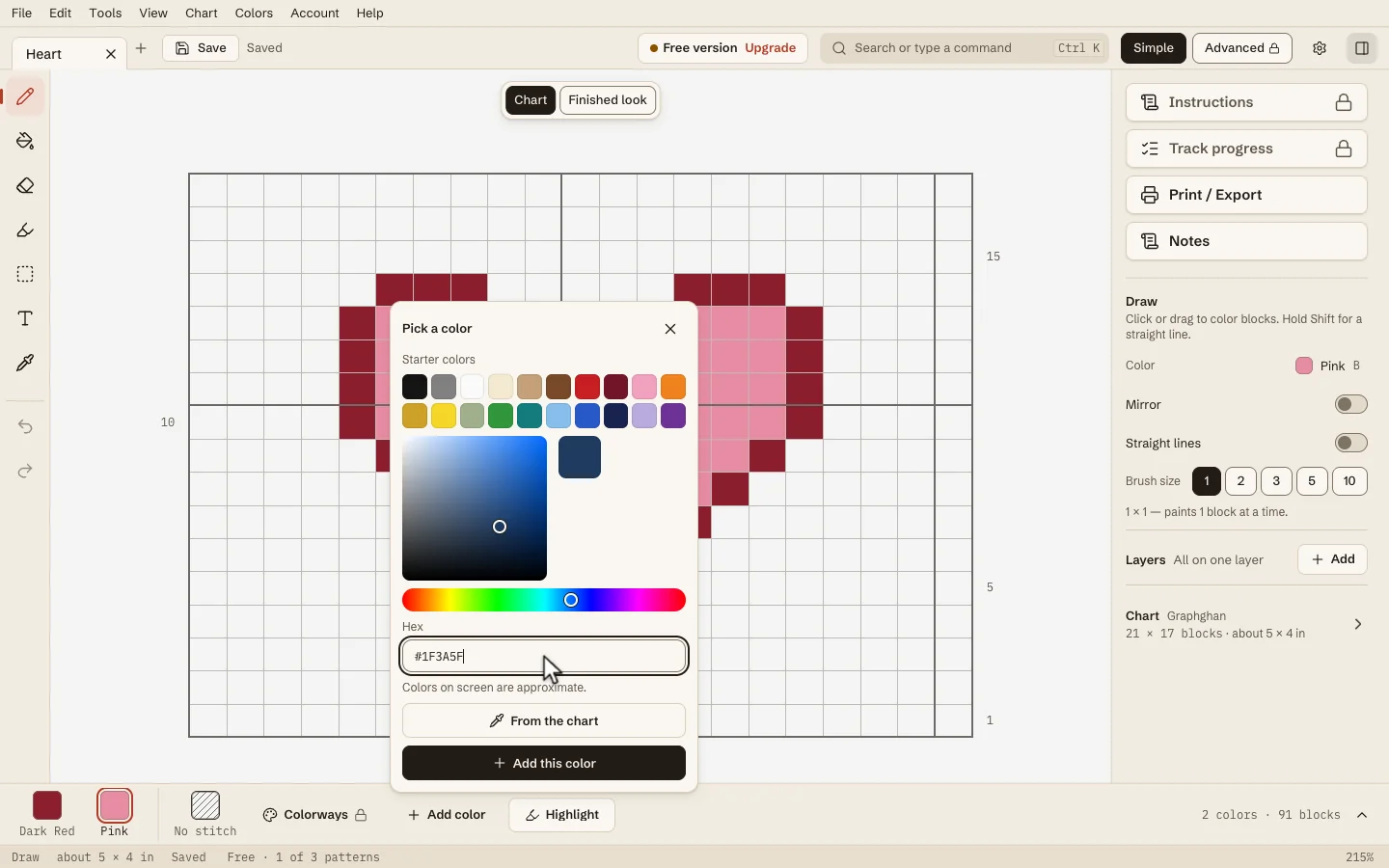
Choose Hex or RGB beside a custom color value. Enter your value and press Enter. StitchWing remembers your choice; you can also change it in Settings › Editing › Color values. The preview square changes to your color.
- You see: the preview square matches your color. If you type something StitchWing can't read, a message says Type 3 or 6 hex digits, like #1F3A5F.
- Tip: you can type it with or without the # sign. Three-character shorthand such as #ABC works too.
Step 3. Press Add this color
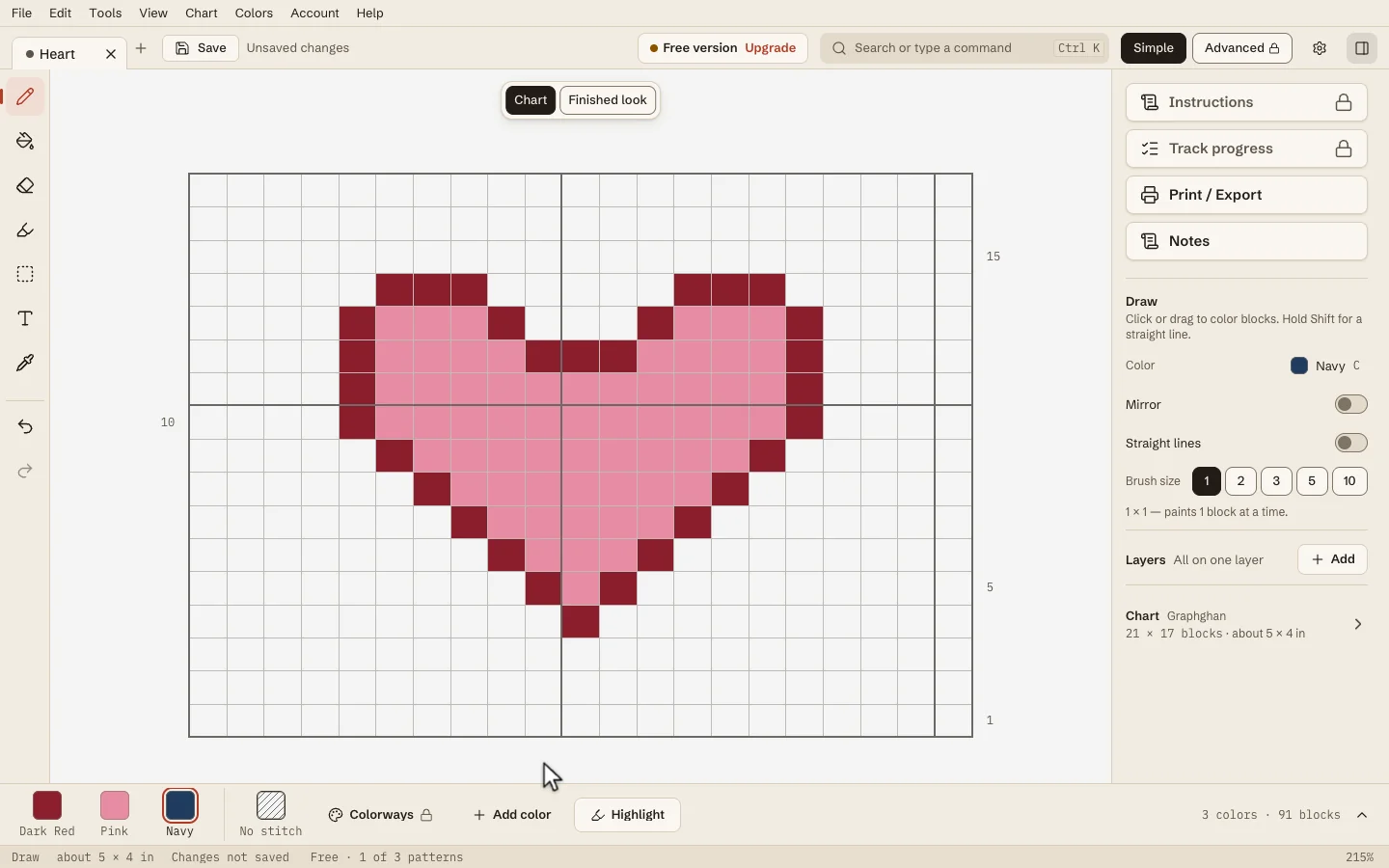
Press Add this color. Your color joins the strip and becomes the color you draw with.
Step 4. Give it your yarn's name
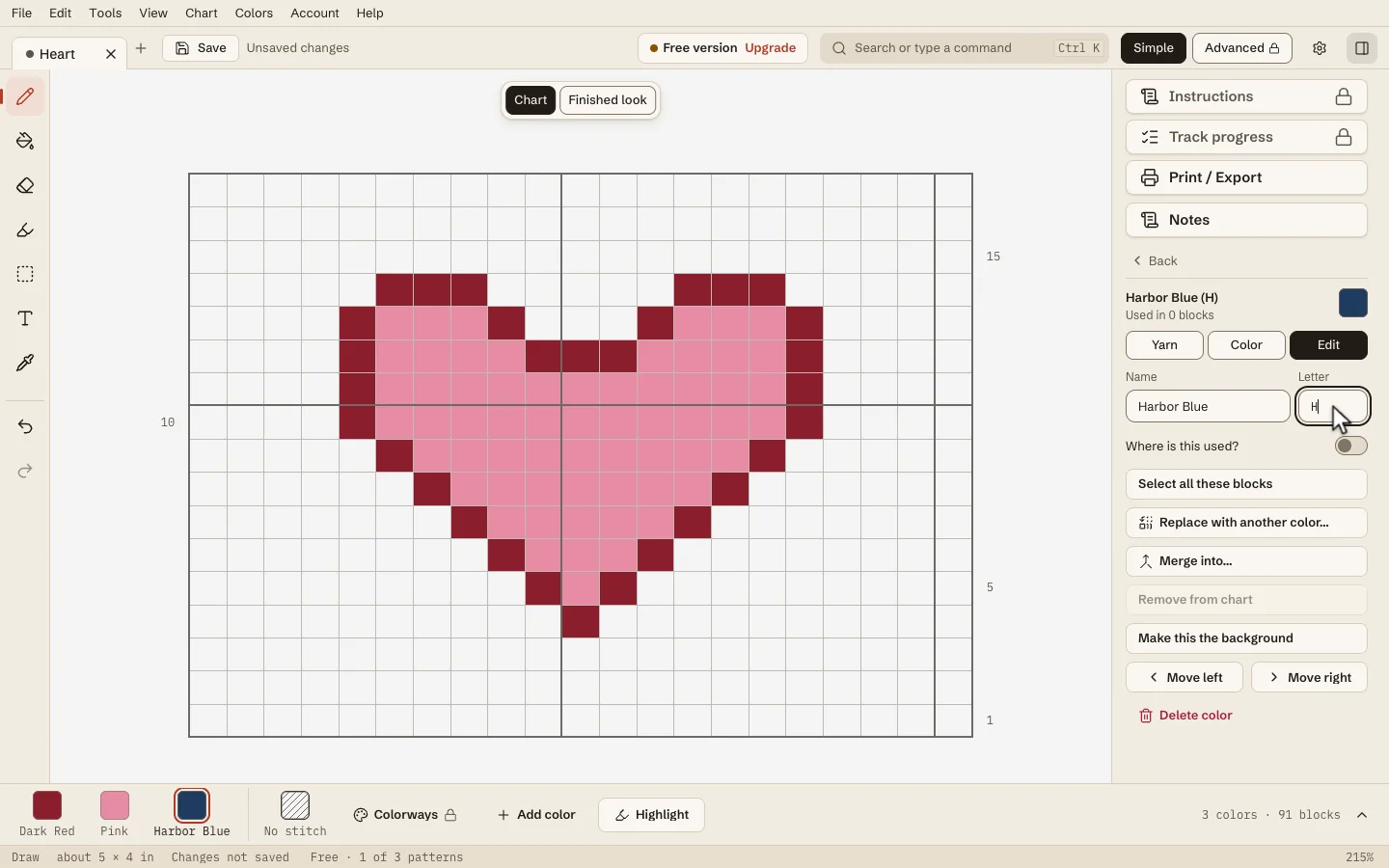
Click your new swatch. In the side panel, open the Edit tab. In Name, type what you call it (up to 60 characters), for example "Harbor Blue". In Letter, type one to three letters or numbers that mark it on your chart, for example H.
Step 5. Write down the yarn
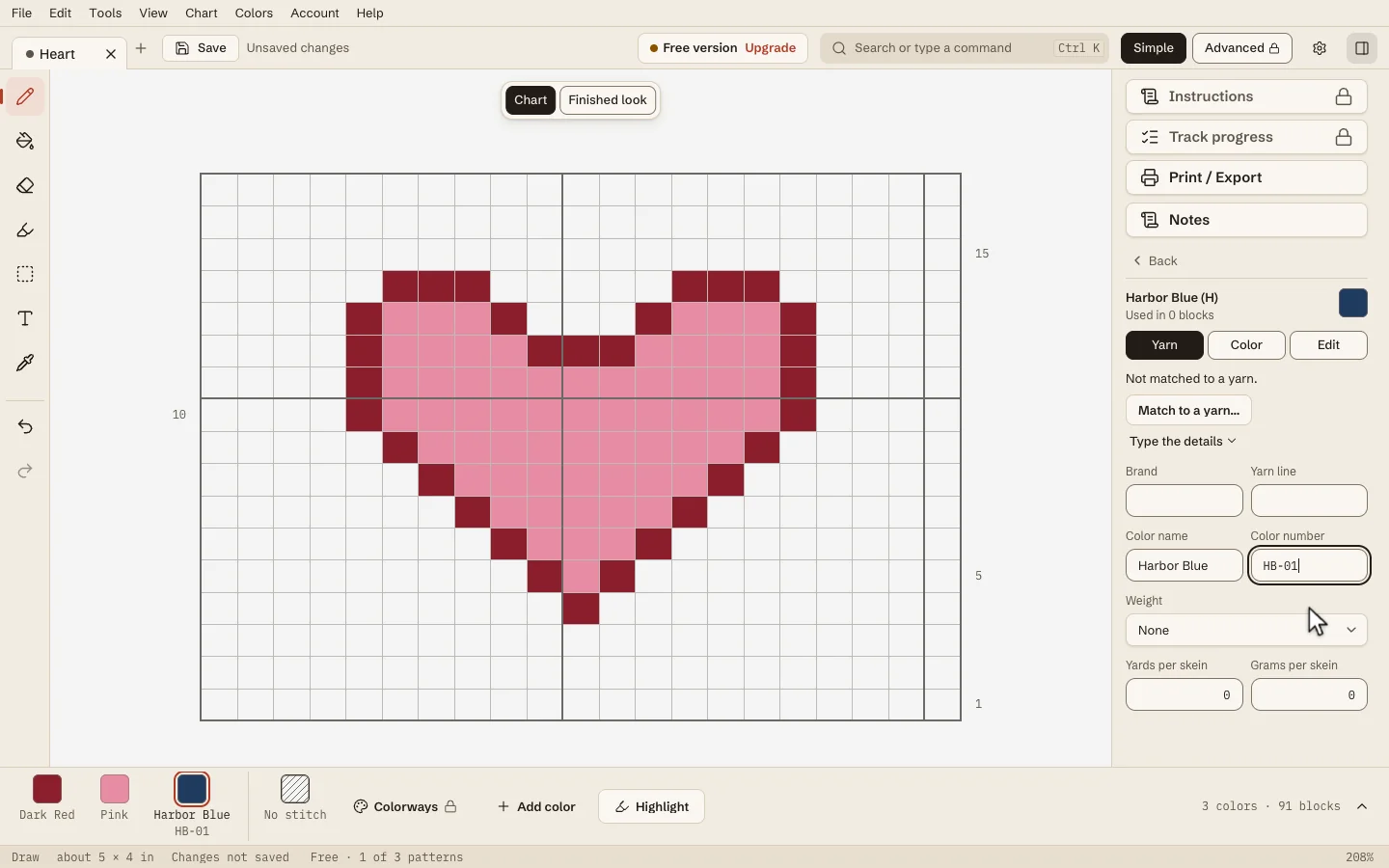
Open the Yarn tab. Under Not matched to a yarn, press Type the details. Fill in what you know: Brand, Line, Color name, Color number, the weight, and the yards and grams in a skein. Leave anything you don’t know blank. The example records Harbor Blue and HB-01.
- You see: your typed details replace the card.
Step 6. Change a color you already have
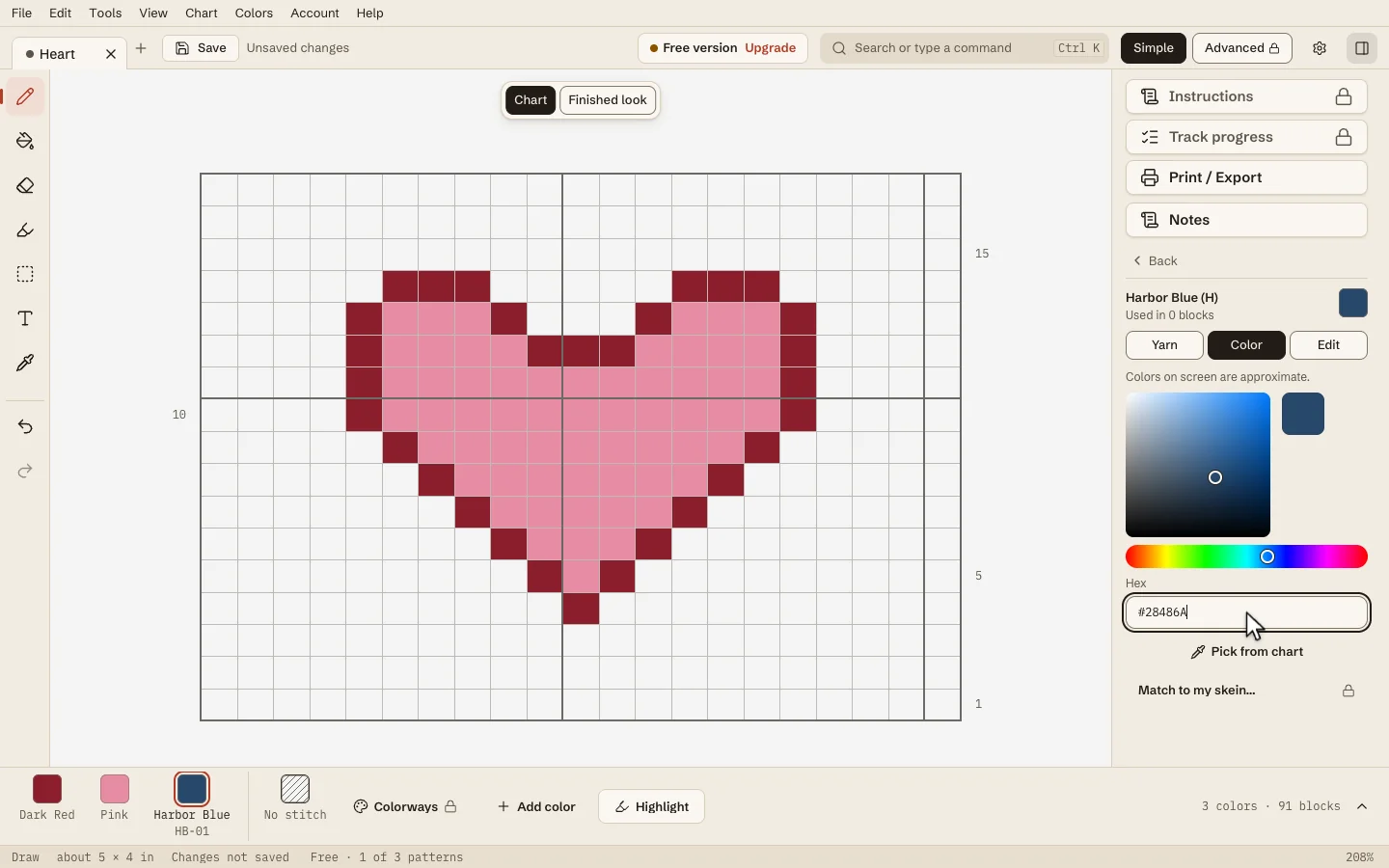
To change a color already in your chart, click its swatch, open the Color tab, and enter a new color value. Press Enter to apply the new color to your chart.
- To swap one color for another everywhere, open the Edit tab and press Replace with another color… or Merge into…; both start with Pick a new color…, and one Undo puts everything back.
Step 7. Draw with it
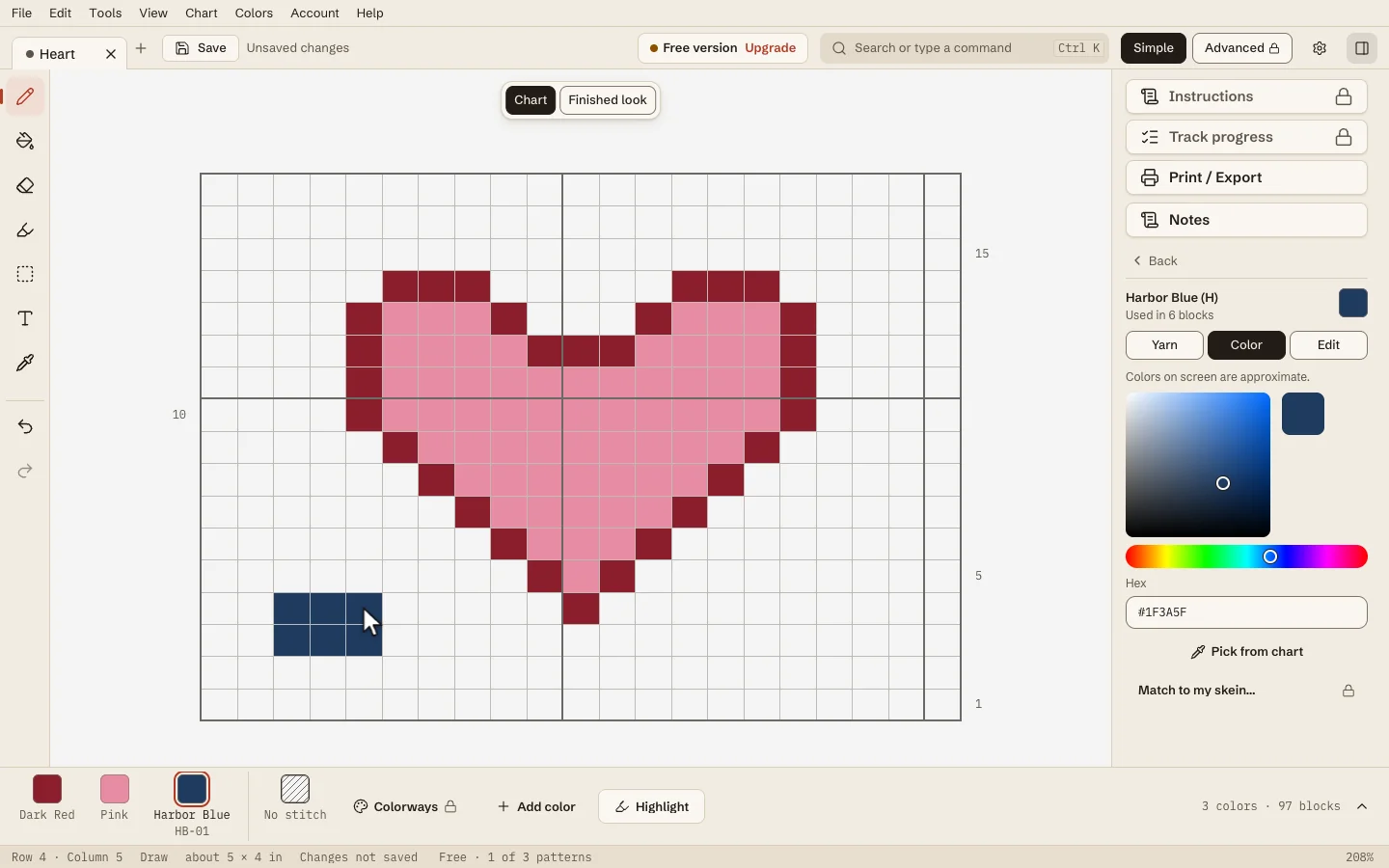
Pick your color from the strip and draw as usual.
Colors are approximate
Colors on a screen are only close to real yarn. Match against a real skein before you buy.
If something goes wrong
- "Type 3 or 6 hex digits, like #1F3A5F." Use 3 or 6 characters from 0 to 9 and A to F. Check for a letter O instead of a zero.
- My yarn company isn't in the library. Use Type the details in step 5. Colors go in one at a time.
- I added the wrong color. Press Undo, or select it and choose Delete color.